To ease the headache of having to work using VNC on my server, I decided to use an FTP server. There were several choices, but vsftpd’s page had a strong sales pitch and I succumbed to it rather easily.
Installation was pretty easy using the Software Sources tool. I typed “ftp server” in the search box and clicked on “show technical terms” at the bottom. Once installed, I referred to the man page for specific items I wanted to add. Basically, I first made a backup copy of the vsftpd.conf file using the following command:
sudo cp /etc/vsftpd.conf /etc/vsftp.conf.original
Next, I edited the conf file using the following command:
sudo gedit /etc/vsftpd.conf &
That “&” at the end allows me to still use the same terminal window. Otherwise, it’d be locked until I close gedit. In case you find that the gedit window doesn’t launch immediately, try running it without the “&” and you’ll be prompted to enter your password.
So, simple changes to the file:
- Uncommented the line “chown_username=myuser” and replaced myuser with a valid user. All files uploaded will now be owned on Linux by this user
- Added the line “file_open_mode=0666”
0777– this allows all the uploaded files to be accessed, and modified by all users
From my PC when I start FileZilla, I can browse to the folder where the files I want to work on are, or should be! Easy enough to create directories and upload files too. FileZilla has a 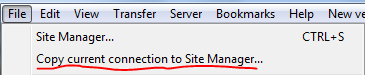 cool option where you can add the current connection setting to the Site Manager.
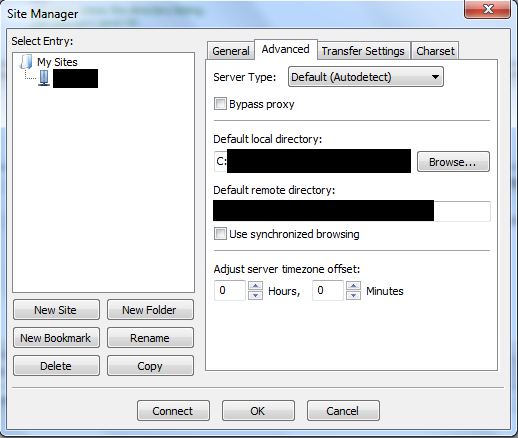
In Site Manager, I set up the directories I want to open up automatically when I open this connection, both local and remote.